anonymous216.73.216.219
Room booking,
right at the door.
Keep booking rooms through Microsoft 365, Google Workspace or your existing scheduling platform. Door Tablet brings those bookings to the room display - so people can see availability, check in and manage their meeting where it happens.
 A room display where people need it: beside the meeting room door.
- 1See room availability
- 2Book at the display
- 3Check in
- 4Extend your meeting
- 5End your meeting early
- 6Book another room
Your calendar, connected to the room
Book in your calendar. Interact at the room.
-
Keep booking as usual.
Arrange meetings and reserve rooms through your connected scheduling platform.
-
See the schedule at the door.
Show room availability, meeting details and upcoming bookings.
-
Manage the meeting from the room.
Reserve an available slot, check in, extend or finish early, according to your booking rules.
A clearer view of your workspace
Two ways to find your space.
Check the room in front of you or explore availability across your facility. Door Tablet brings both views to your room displays.
See the room.
Room View
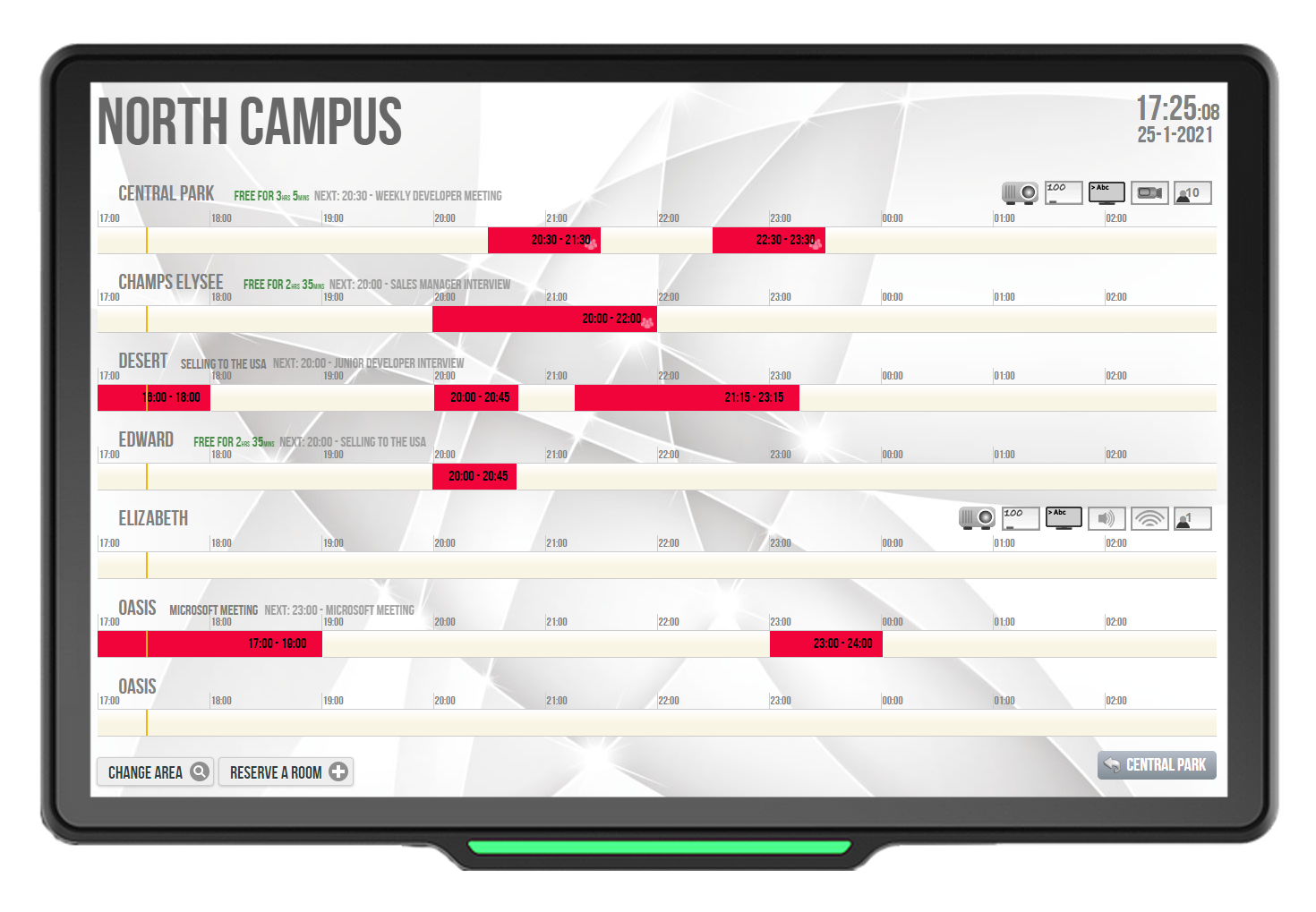
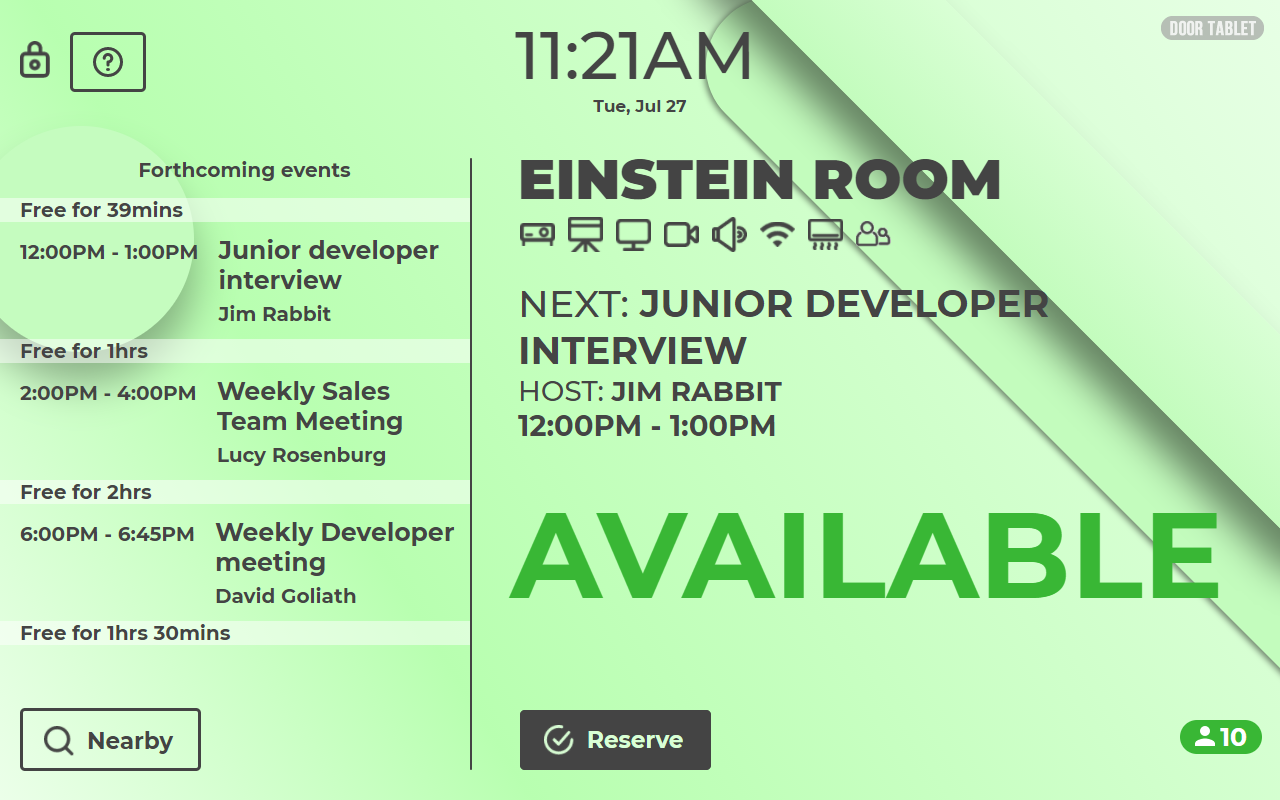
See the room’s status, current meeting and upcoming schedule. Make a walk-up booking when the room is available.
View full-size example
Find another space.
Neighbourhood View
View activity across your facility and book another room from the display you are using. Find a space without walking from door to door.
View full-size example
 A closer look at the room display. View full-size image (opens new tab)
Before, during and after the meeting
Keep the day moving.
Give people simple ways to manage their room booking, right where the meeting happens.
-
Reserve your space
Book through your connected scheduling system or make an ad-hoc reservation at an available room display.
-
Check in when you arrive
Confirm the meeting at the display. Configure reminders and no-show rules to release rooms that are no longer needed.
-
Extend your meeting
Need more time? Extend the meeting from the display when the room’s availability allows.
-
End your meeting early
Finish the booking and release the room so someone else can use the remaining time.
-
Book another room
Use Neighbourhood View to find and reserve another available space from the display you are using.
Your workplace, your rules
Make room for the way you work.
Shape the booking experience around your people, your spaces and your organisation’s requirements.
Make the display yours
Customise branding, layouts, colours, text and language. Apply changes across your organisation, by department or for an individual room.
Make availability visible
Clear, colour-coded room status helps people see what is available. On equipped hardware, LED indicators make status visible from a distance.
Put unused rooms back to work
Configure check-in reminders and automatic cancellation for no-shows. Let people release rooms early when meetings finish ahead of schedule.
Add touch, cards and sensors
Support check-in and check-out using touch, RFID or motion sensors, according to your setup. Choose compatible hardware and confirm card compatibility before ordering.
Get help to the right team
Let room users request assistance with IT, maintenance, cleaning or catering through messages sent to the team responsible.
Get more from your spaces
Review room usage with analytics, and use idle displays for digital signage such as workplace messages, slideshows and custom feeds.
Available features depend on your hardware, integrations and configured booking rules. Explore administration and security.
Customisation
Make every display feel like yours.
Start with an existing template or create a layout that reflects your organisation. Choose your logo, backgrounds, colours, fonts and the information people see.
- Your visual identity. Match your displays to your brand and the spaces around them.
- Your words and languages. Adapt labels and terminology, with multilingual and right-to-left options.
- Your rooms and teams. Keep a consistent company look or tailor the experience for a room, department or location.
Explore display customisation →
 Education. A university identity, class schedule and room details in one display.
 Healthcare. A distinct layout for practitioner schedules and clear room status.
Business rules
Your rooms. Your booking rules.
A small walk-up room and a boardroom do not need the same rules. Set an organisation-wide policy, then adapt the booking experience for individual spaces.
Decide where people can book
Enable or disable walk-up bookings for each room. Choose whether a display can book other spaces, and whether a room can be booked from another display.
Set durations that suit the space
Configure maximum reservation lengths and booking slots for reservations made at the display.
Require check-in where it matters
Choose which rooms require check-in and set the grace period before an unattended booking is cancelled and the room becomes available again.
Control extensions and early release
Choose whether extend and release controls are shown, configure extension durations and allow rooms to be released when meetings finish early.
Protect access and meeting privacy
Show meetings as private in selected spaces. Where RFID or PIN identification is configured, restrict reservations to appropriate user types.
Apply the right rules consistently
Reuse a room’s settings across a selected group of spaces, while keeping different rules for rooms with different purposes.
For example: allow short walk-up bookings in small rooms, reserve a boardroom for planned meetings, and require check-in where unused bookings hold up other teams.
Explore administration and booking controls →
Availability you can see
A clearer view along the corridor.
On equipped displays, red and green status lights make room availability visible as people approach.
These installed displays at Nakupuna’s Arlington office show how room booking fits into the working environment.
See the Nakupuna story →
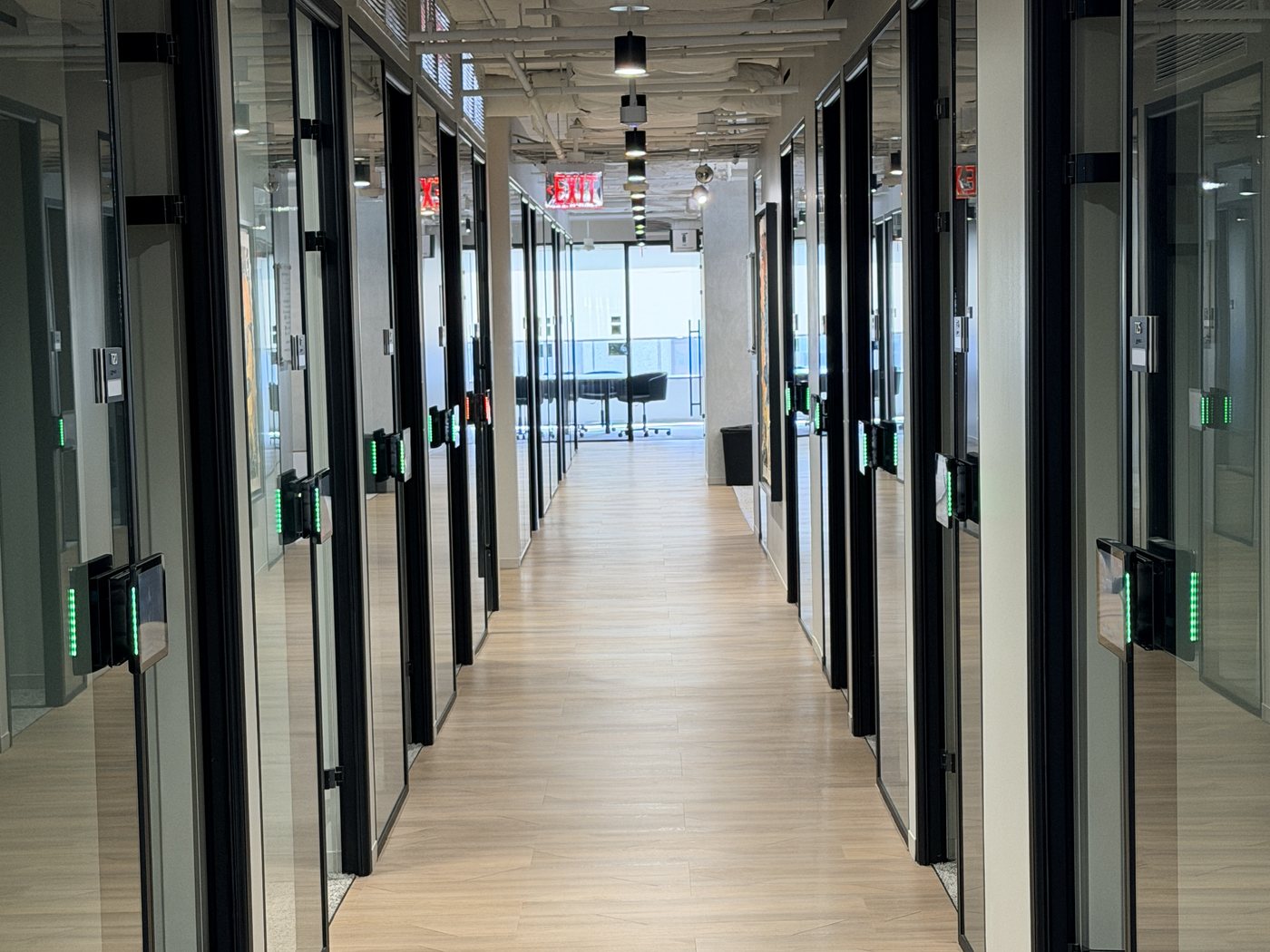 Door Tablet displays outside meeting rooms at Nakupuna’s Arlington office.
Connected scheduling
Keep the calendar.
Connect the room.
Continue booking through familiar scheduling tools, with reservations and availability reflected on your room displays.
And more — see all scheduling integrations →
Bring remote colleagues in
One meeting.
People in every location.
Create Microsoft Teams, Zoom or Google Meet meeting details when making room reservations, using a supported service configuration.
Connect the room booking experience with your online meeting services, so colleagues can join wherever they are.
Discuss your scheduling setup →
Built for the workplace
The right display for your rooms.
Choose purpose-built room hardware to suit your spaces, installation needs and preferred ways to interact.
Let’s talk about your workspace
Find the right room booking setup for your workplace.
Tell us about your rooms, scheduling system and requirements. We’ll help you bring them together.
Discuss your requirements
doortablet/dtcms.nsf/doortablet/dtcms.nsf::/doortablet/css/dt.css?rnd=45671" id="dt-css" data-dummy="cont-homepagesA0AEF10483A20C0A802586760037AC95Room BookingYes