n
anonymousdoortablet/dthelp.nsfprism
Protected content
| 273pages | Our help system contains many pages and videos for you to consume. This includes the complete information on how Door Tablet works, all its features and options, and of course the many benefits for your business. Door Tablet School offers many videos too. |
|
 |
| 
Click on images to see them in full screen
3878E168EEA3004A80258C37004C693FBasic Setup
From V10.20 Door Tablet connects to BuildingEngine's PRISM.
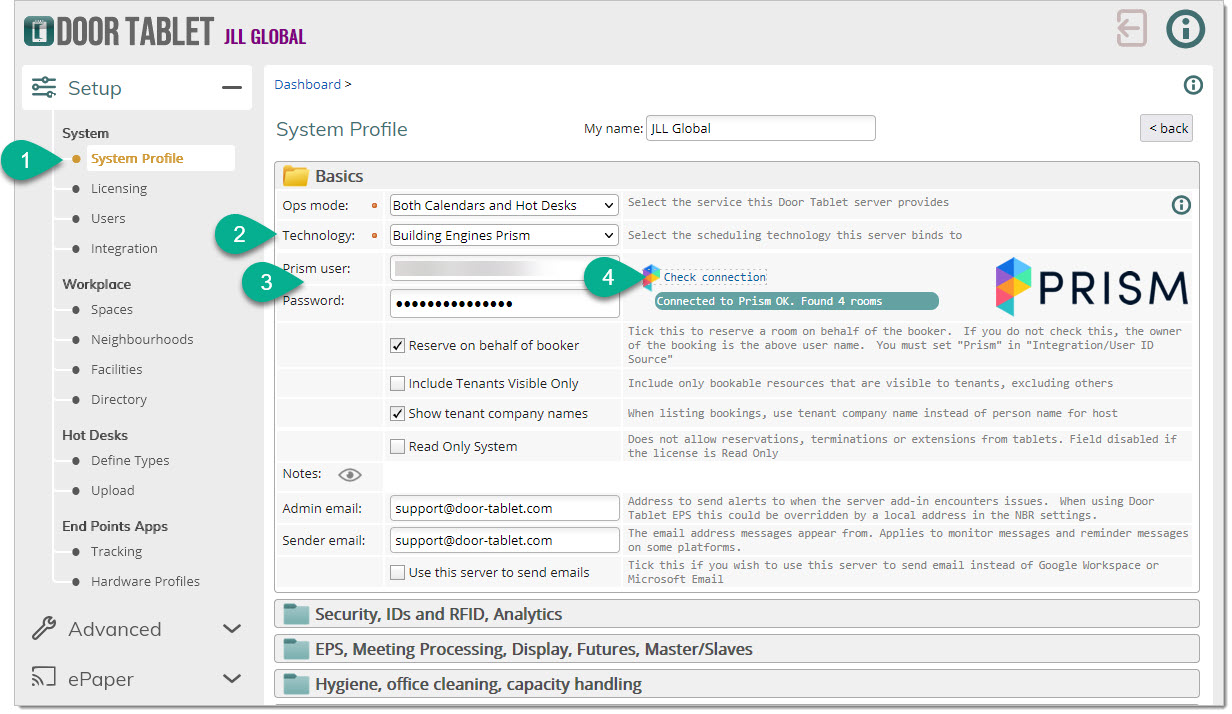
 Open the System Profile and select "Building Engines Prism", as shown below.
Use your Prism credentials :
- email address
- Password
Please note: you must have Account Admin rights for your Prism instance
Once you have added the data items, check the connection:
 Notes:
Door Tablet provides two additional features here:
Notes:
Door Tablet provides two additional features here:
- Eliminates rooms that are technically bookable but not visible to tenants
- When displaying bookings, show the name of the Tenant Company rather than the individual who made the reservation
The above feature is inactive for ad-hoc bookings unless the system is enabled to identify users in Prism at the time of booking (coming soon)
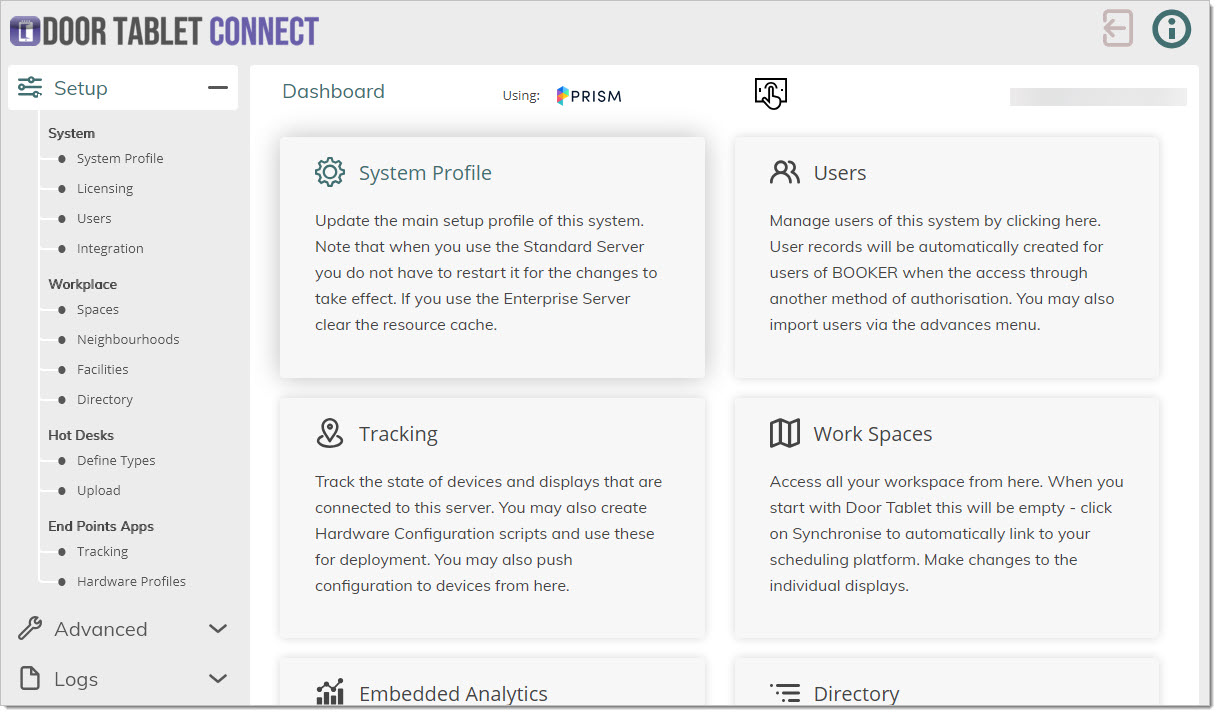
Your dashboard top will now look like this:
 You are now ready to Synchronise your rooms and bring them into Door Tablet.
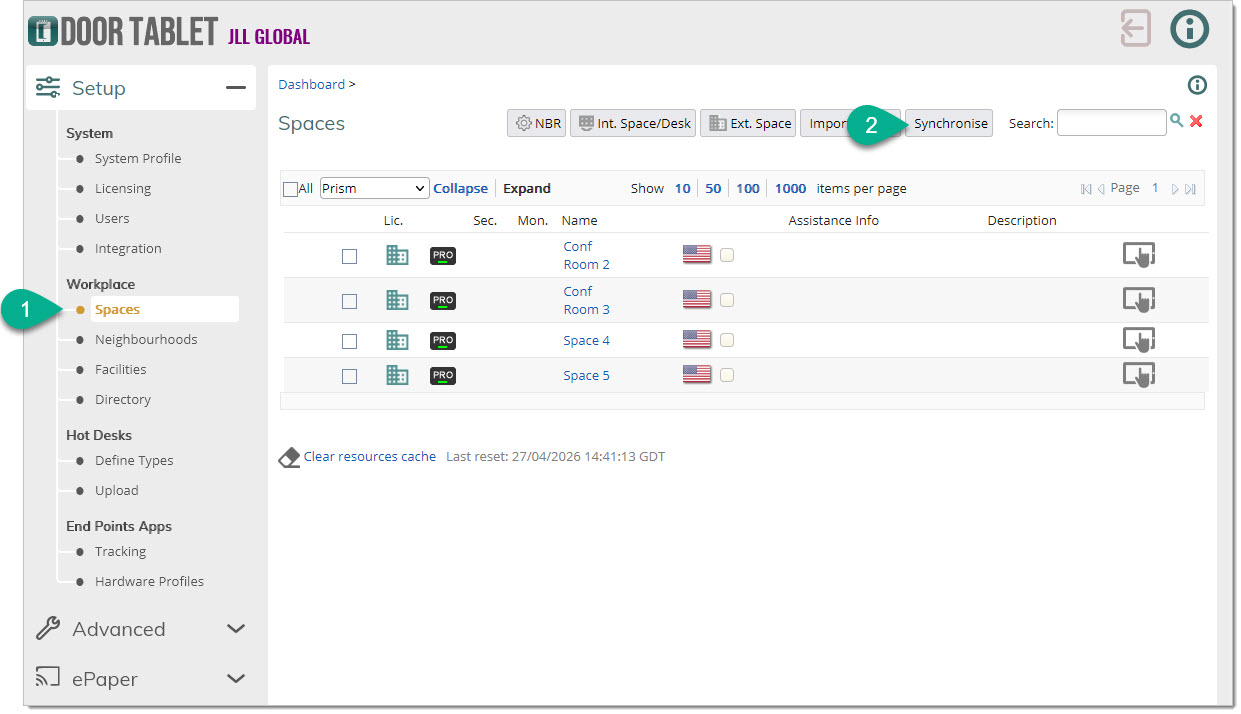 When you Synchronise the room for the first time they will be inactive and unlicensed. Click on room names to edit them. Once you edit the rooms remember to mark those you need as Active and specify if a licence is required.
Limitations
The BuildingEngines API imposes a limit that affects Door Tablet. The limit is that meetings cannot be changed once they have started. The impact is:
When you Synchronise the room for the first time they will be inactive and unlicensed. Click on room names to edit them. Once you edit the rooms remember to mark those you need as Active and specify if a licence is required.
Limitations
The BuildingEngines API imposes a limit that affects Door Tablet. The limit is that meetings cannot be changed once they have started. The impact is:
- Meetings cannot be extended or terminated. If you wish to extend a meeting, create a new one right after the current one.
- Check-in is no longer relevant because a meeting could not be terminated due to NO-SHOW
- Since check-in is no longer relevant, no need to issue check-in code or set secure check-in
- The Check-in, Extend and Terminate functions are automatically disabled.
Moving forward, once the API allows us to change the end time of a meeting, these limitations will be removed.